How RPA and OCR turn invoices into verified accounting entries
RPA operates software according to configured rules, OCR converts image text into machine-readable data, and document AI structures that text into fields and line items. A reliable invoice workflow connects receipt, extraction, format and arithmetic checks, supplier and purchase-order matching, human review, system entry, and post-save verification in the destination system. Confidence scores cannot replace accounting rules, and high-scoring fields can still be wrong. Azure Document Intelligence extracts invoice fields while Power Automate can drive legacy desktop systems without APIs, yet both still require field mapping, exception handling, licensing, and ongoing maintenance. Measure success by required-field accuracy, review labor, confirmed entries, and total workflow cost.
As a company grows, document processing can take up much of the working day. It may be time to consider an RPA system. What is RPA? Companies use RPA combined with OCR to handle repetitive, time-consuming paperwork, reduce manual work, and allow employees to focus on more valuable business activities.
What is RPA, and why does OCR matter to it?
RPA (Robotic Process Automation) automates computer tasks by imitating the way people operate software. When document formats and operating rules are consistent and exception handling has been defined, it can take over large volumes of repetitive, mechanical paperwork and reduce the chance of manual operating errors.
Specifically, RPA follows configured steps to operate software—downloading attachments, opening windows, filling fields, and retrieving save results—making it well suited to repetitive tasks with clear operating rules. Automation can also connect systems through an application programming interface (API), a programmatic interface other applications use to access a system. Whenever the accounting system already offers a reliable API or import facility, evaluate that option first, and reserve screen automation for steps that still require interacting with the interface.
How OCR helps an RPA system
OCR uses text recognition to identify the words in flat image files, such as PDF and PNG documents. This allows an RPA workflow to extract information from an image, place it in a report, and then enter the data into another system, automating otherwise laborious document handling.
Optical character recognition (OCR) turns text inside scanned images into machine-readable content, transforming view-only PDFs, PNGs, and photographs into searchable, comparable data ready for system entry. For a deeper look at image preparation and recognition mechanics, see the separate OCR tutorial; here, the focus is on what happens after recognition.
Document AI goes a step further by interpreting what that recognized text represents—distinguishing an invoice total from a subtotal and structuring fields and line items. Because OCR itself may use AI models, the two terms are not mutually exclusive. A large language model (LLM) can help interpret variable notes, provided its output remains strictly grounded in the source document; it must never invent missing amounts, tax identifiers, or bank account numbers. Only validated, approved data should pass to RPA for subsequent actions.
Advantages of adopting an RPA system
Adopting RPA can offer a business four advantages:
1. Let employees focus on more meaningful work
By taking over large volumes of repetitive, mechanical tasks, RPA lets employees devote their time to work that contributes more value to the business.
2. Expand document processing capacity
Automating document handling can increase the volume processed at the same time compared with manual entry. A sudden increase in documents still requires queues and schedules sized for the available machines, licenses, API quotas, destination-system capacity, and reviewers. Workload capacity is not unlimited.
3. Reduce operating costs
When RPA improves the efficiency of document processing, execution costs may fall. The calculation must also include licensing, implementation, maintenance, and human review.
4. Make operations consistent and systematic
RPA turns operations into defined procedures, reducing repeated entry and operating oversights while making steps and records more consistent. Recognition, rules, and approvals can still be wrong, so exception handling and human confirmation remain necessary.
Measure the complete workflow
Handing repeated downloading, copying, and pasting to a flow lets staff focus on discrepancies, missing documents, and communication. That preserves RPA's central value: moving predictable operations into a system reduces repeated data entry and makes steps and records more consistent. Capacity remains bounded, however, by machines, licenses, API quotas, destination-system capacity, and review staff; peak periods still require queues and scheduling, as workload capacity is not unlimited.
During a pilot, separately log extraction time, correction time, entry time, waiting time, and failure reasons for each document, alongside required-field accuracy, the share sent to review, duplicates intercepted, and confirmed successful entries. Include licenses, machines, cloud pages, flow maintenance, and review labor in the cost calculation before deciding to expand. Recognition errors, faulty rules, and mistaken approvals can all still occur—and because automation can repeat the same error at scale, regular sampling and traceable records remain necessary.
How can RPA be used with OCR?
Adding text recognition can reduce repeated document-data entry and help business operations, particularly in banking and finance. Field validation, human confirmation, and post-entry checks are still needed to control errors:
Improve the efficiency of business operations
RPA can reduce manual processing time and costs when it handles repetitive daily tasks with clear specifications. Common business applications include:
- Order management
- Payment reconciliation
- Purchase orders
- Payment settlement
- Import and export customs declarations
- Inventory management
- Human resources management
RPA is not limited to these applications. Other processes should be assessed against document quality, operating rules, exception rates, and system interfaces before being automated.
Take routine invoice processing as an example: when a supplier invoice arrives by email, someone has to download the attachment, read the invoice number and amount, check the purchase order, and enter the data into an accounting system. Most of that effort goes into moving information from one application to another; real judgment is needed when amounts disagree, an invoice has already been submitted, or a scan is unreadable. Combining RPA with OCR shifts those predictable operations to a workflow so staff can focus on discrepancies and exceptions.
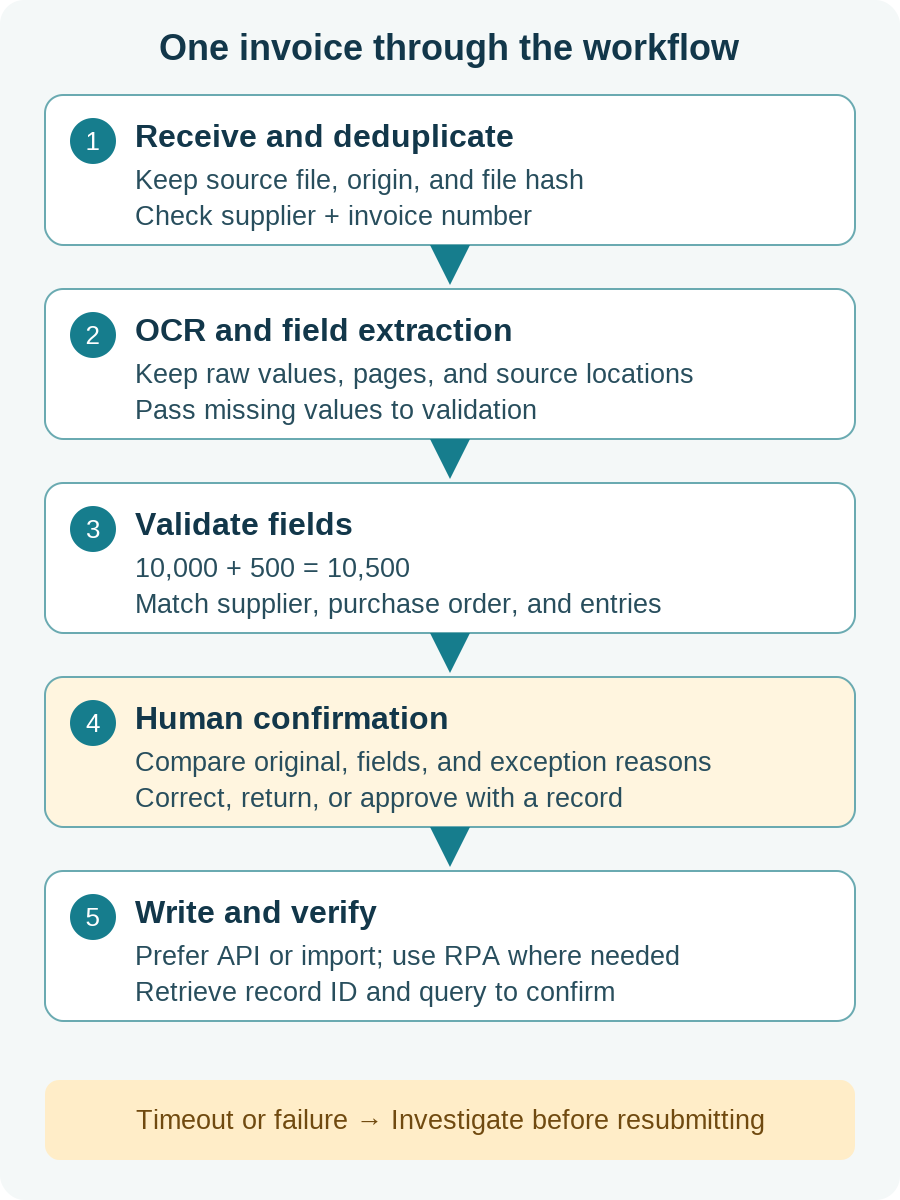
A dependable document workflow also needs a human review step and a clear plan for failed writes. Correctly recognizing text does not establish that an invoice should be paid, and clicking Save does not prove that the accounting system recorded the entry. Using a single hypothetical supplier invoice, the walkthrough below connects receipt, extraction, field validation, human confirmation, and system entry into one traceable process.
Define the input and output for one invoice
To make each stage concrete, this walkthrough uses a hypothetical single-page purchase invoice: invoice number AB12345678, date 2026-11-20, currency TWD, subtotal 10,000, tax 500, and total 10,500, linked to purchase order PO-001. These figures illustrate validation rather than an actual recognition result or customer deployment, and tax should always be checked against the source document and your accounting rules.
Before building anything, assemble a de-identified invoice file, a table of correct expected fields, the supplier master record, its matching purchase order, and a test account for the accounting system. Narrowing the initial scope to one document type and one entry procedure makes errors far easier to locate than accepting every supplier layout at once. Likewise, when an electronic invoice is already available as XML or another structured file, read its fields directly and reserve OCR for image-only material.
For every job, retain the source file location, file hash, receipt time, source email identifier, processing state, extracted and corrected values, reviewer, and destination record number. A file hash—a fingerprint calculated from file contents—helps identify identical attachments submitted again. To catch business duplicates as well, check supplier identity together with the invoice number, since filenames alone are insufficient.
Extract invoice fields with Azure Document Intelligence
With inputs and tracking fields defined, the prebuilt invoice model in Azure Document Intelligence offers a practical starting point for evaluating field extraction, returning both invoice fields and line items. Its language and currency support includes Traditional Chinese for Taiwan and TWD, though listed language coverage does not guarantee accurate handling of every Taiwanese invoice layout, tax identifier field, or unusual handwriting.
- Create an Azure subscription and a Document Intelligence resource, and record the resource region, endpoint, and access method. Start with a de-identified single-page PDF or PNG; before uploading live accounting documents, confirm the cloud processing regions and permissions your organization allows.
- Follow the Studio and Foundry guidance to open a prebuilt-model experience and select the invoice model. In Document Intelligence Studio, select Invoices, upload the file, and choose Run analysis—bearing in mind that entry points can change as these products are integrated.
- Select the invoice number, date, subtotal, tax, and total in turn, comparing each value with its highlighted location in the image. Save the JSON result and record both the model and API versions. For programmatic integration, follow the v4.0 quickstart using the recorded
2024-11-30version andprebuilt-invoicemodel. - Map the result into your own schema—such as
invoice_no,invoice_date,subtotal,tax,total, andcurrency. Preserve missing values as nulls with a recorded reason, and pass the source text, page number, and available confidence scores on to validation.
Validation must catch plausible-looking errors
Extracted fields should never move straight into accounting unchecked. Suppose the model reads the total as 10,800: even with a high confidence score, the invoice must go to review because subtotal 10,000 plus tax 500 does not equal 10,800. Confidence helps prioritize review queues, but it cannot replace accounting rules or authorize payment on its own.
Define four groups of checks around this invoice. Format checks require a parseable date, a populated currency, numeric amounts, and the appropriate numbering format for the document type. Arithmetic checks compare subtotal, tax, and total against a company-approved rounding tolerance. Master-data checks match supplier identity against existing records, while transaction checks compare items, quantities, amounts, and registration status against PO-001—ensuring that even a newly scanned copy of the same invoice is flagged.
| Example input | Validation result | Next action |
|---|---|---|
| 10,000 + 500 = 10,500; purchase data matches | Rules pass; human review is still required in this example | Display source image and fields for reviewer confirmation |
| Recognized total is 10,800 | Arithmetic mismatch | Highlight the total and its source location for correction or return |
| AB12345678 already has an entry | Possible duplicate | Inspect the existing record; do not create another before confirmation |
| Supplier or required field cannot be confirmed | Insufficient information | Request a replacement or missing document and keep the job pending |
Record readable failure messages—such as “Total differs from subtotal plus tax by 300”—rather than vague labels like “AI failed.” Low confidence, stamps over text, folds, and glare call for inspecting the source image and, when needed, requesting a cleaner scan; a downstream language model must never guess missing characters in an account number.
After human confirmation, let Power Automate enter the data
Once validation is complete, this example routes every document through human confirmation. The review screen should display the original invoice, extracted fields, purchase data, and exception reasons side by side so the reviewer can correct, return, or approve the entry. Store original and corrected values along with the reason for each correction, and move only approved records to entry. If you later decide to let some low-risk documents pass automatically, base that separate policy on observed error patterns and business risk.
When the accounting system only offers a desktop interface, Power Automate for desktop can handle data entry. Build and test the following steps in a test environment; if an API or bulk import is available, compare its response handling and duplicate-prevention features before choosing RPA.
- Create a desktop flow on Windows and supply approved fields through input variables or an approved staging table. You can validate a first version with manually exported test data before connecting a cloud flow or work queue.
- Use the desktop flow recorder to capture opening the test accounting system, navigating to a new invoice, and filling each field. Replace the recorded literal text with variables and test with the same invoice.
- Target supplier, date, and amount fields using UI elements, adding waits for the screen to be ready and checks on field values. Mouse coordinates alone risk targeting the wrong location whenever a window moves or the layout changes.
- Verify once more before submission that the invoice does not already exist. After saving, retrieve the system record number, query the record back, and confirm that supplier, invoice number, and amount match before marking the job complete.
- Configure error handling for failed actions or blocks. If saving times out, mark the job pending investigation and query the destination system before resubmitting—blind retries can easily create duplicates.
The same division of work—establishing verified data before acting on a system—applies to order management, purchasing, payment reconciliation, settlement, and inventory changes. Each domain still brings its own controls: customs declarations need additional document and filing rules, employee onboarding requires personal-data controls and account-permission approval, and banking identity documents and application forms demand identity verification, separation of duties, and institutional controls. Because successful OCR extraction never completes a review on its own, these uses can share the workflow concept while enforcing different release conditions.
Improve accuracy and efficiency in banking reconciliation and transactions
Banks handle large volumes of deposits, bill payments, reconciliation, credit-card applications, loans, and financial-product purchases. Because these tasks affect customers’ assets, manual form entry puts staff under pressure to avoid mistakes, yet incorrect entries still occur. With authorization and review controls in place, RPA and OCR can scan application documents, connect financial systems, enter information, export files for records and statistics, and assist with cash settlement. This can reduce repeated entry and improve efficiency, while accuracy must still be checked against source documents, business rules, and human review.
RPA case study: completing employee onboarding in 77 seconds
RPA can support HR work as well as financial reporting. When a new employee joins, HR enters their personal details into the HR system and arranges system accounts and permissions according to the role. In TPIsoftware’s 2019 account published by TechOrange, this internal process previously took HR and IT about 56 minutes. The company reported that RPA reduced it to 77 seconds, saving 97% of the processing time.
These figures describe the company’s internal case at that time; they are not a target every onboarding or OCR workflow can achieve. The account does not provide sample size, a full test environment, or timings for each step, so its 97% result cannot be independently reproduced from the article. For your own workflow, confirm the data before creating accounts, approve access according to the role, and record entry, approval, account creation, and waiting time separately.
OCR is a key part of RPA workflows that read document images
For RPA applications that need to read document images, OCR is an important component. AI-assisted OCR can identify text in images, although accuracy depends on layouts, handwriting, and image quality. LargitData describes its current OCR service as combining OCR and LLMs for recognition and semantic processing. Evaluate the output against your own documents before deciding which RPA applications to connect.
Contact us to learn more about our OCR document recognition system.
To evaluate LargitData's OCR document recognition service, prepare a de-identified sample set covering ordinary documents, blurred scans, unusual layouts, and known correct answers. Request extracted fields alongside their source locations, and clarify integration methods, deployment requirements, and responsibility for exceptions. Comparing candidates against the same documents and validation rules gives a concrete basis for deciding which fields to automate and which still need human confirmation.